
Transistor integrates with Kit and MailChimp, which allows you to collect email addresses on your podcast’s website.
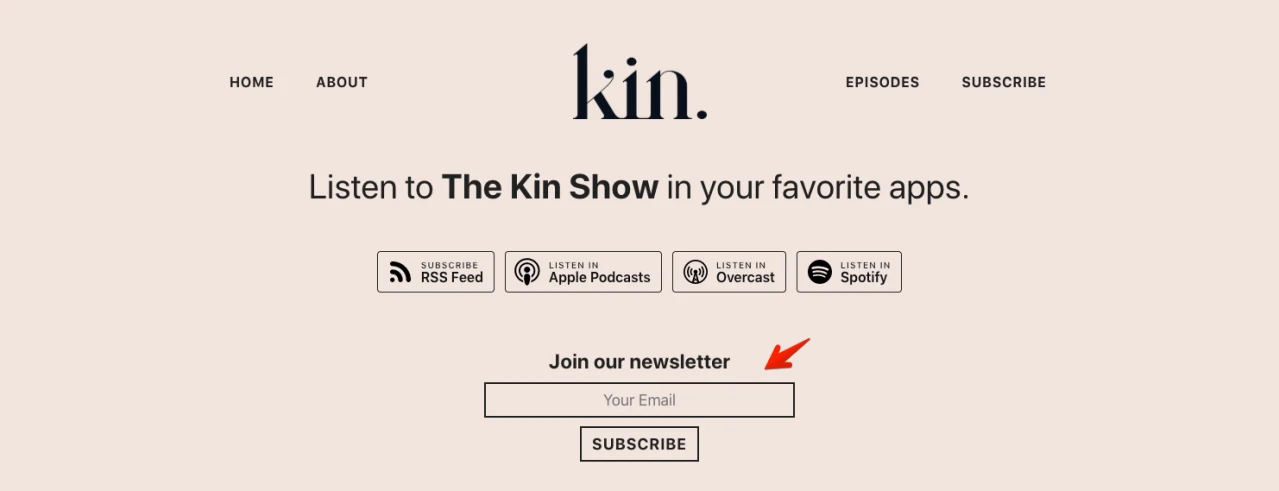
In this tutorial, I will show you how to email subscribers whenever you publish a new podcast episode automatically.
How to set up podcast RSS-to-email in Kit
Automatically send your Kit subscribers an email when you publish a new podcast episode.
You can read more instructions in the Kit help docs.
How to set up podcast RSS-to-email in MailChimp
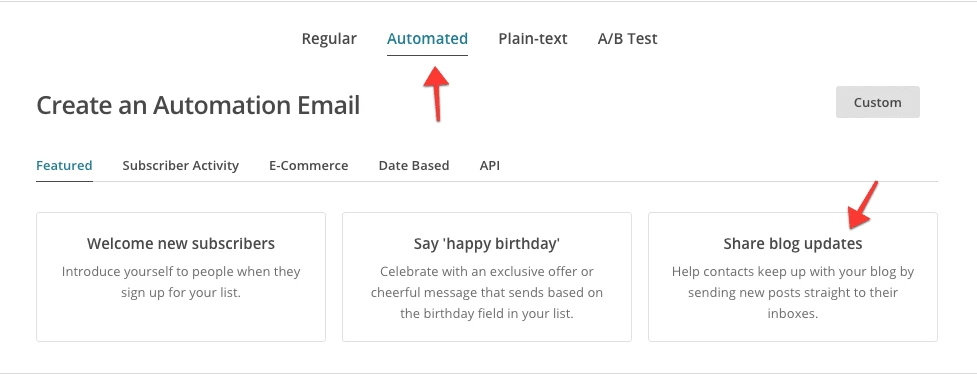
Step 1: In MailChimp, create a new campaign
Once you’re logged in to MailChimp, create a new Automated email campaign. Then select their “Share blog post updates” option:
Step 2: Enter your RSS feed URL
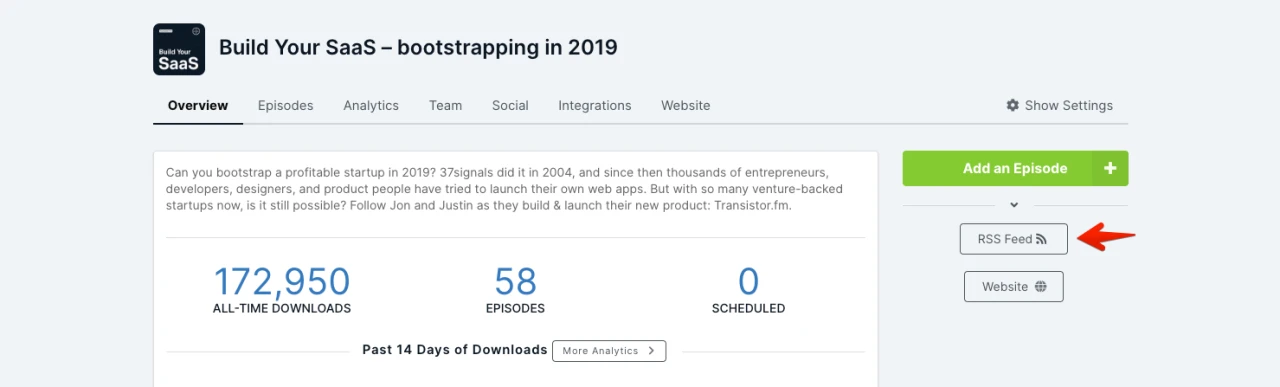
Next, you’re going to enter your Transistor podcast’s RSS feed URL.
Find your podcast’s feed URL on the main dashboard in Transistor:
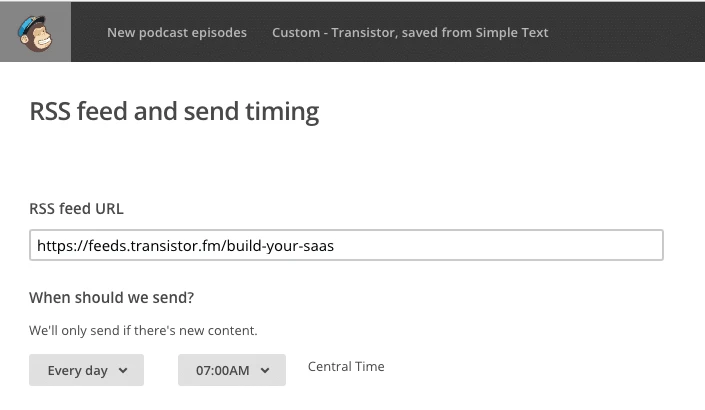
Then, enter your RSS feed URL in MailChimp:
Step 3: Edit your email’s design with RSS merge tags
In MailChimp’s email editor, you’re going to use the following RSS merge tags:
-
*|RSSITEM:TITLE|* – will display the title of your podcast episode
-
*|RSSITEM:URL|* – the URL to your podcast episode (I hyperlink the title with this)
-
*|RSSITEM:CONTENT_FULL|* – will display your full show notes
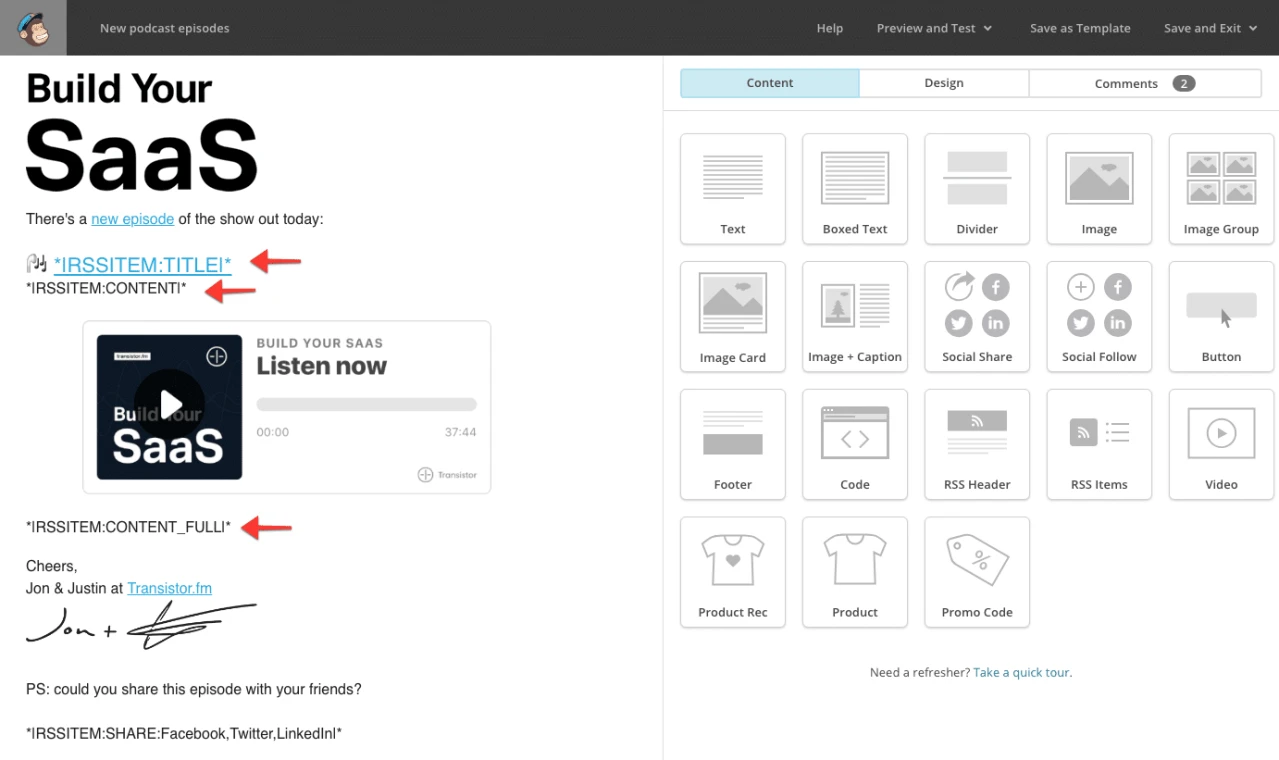
When you send a test email, it should send it with the information from your latest podcast episode.
Step 4: Start your campaign!
Once you’re done designing and testing your email, it’s time to click “Start RSS.” This will enable your campaign.
Now, whenever you publish a new episode, MailChimp will deliver an update to your email subscribers at the scheduled time.
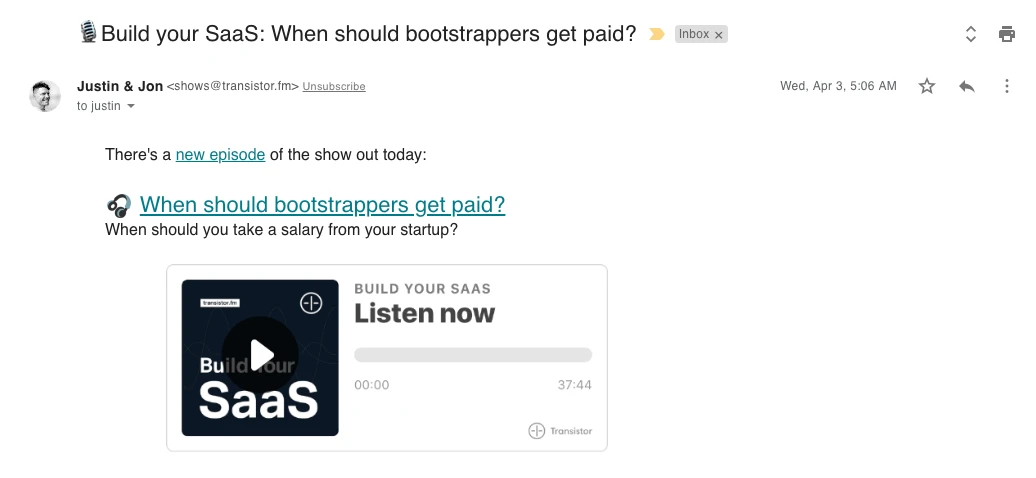
Here’s what the finished product looks like:
Here's a video on how the whole thing works in MailChimp: